Make an offer
Post an offer on BasicSwap's order book: choose the coins, amount and rate, pick a one-time, fixed-total or standing offer, and set how bids are accepted.
An offer puts coins you hold on BasicSwap's order book at a rate you set, for other traders to bid on. Each bid that you accept becomes an atomic swap between you and that trader. You need the coin you're offering enabled, synced and funded on the Wallets page, and the coin you want in return enabled as well, so BasicSwap can receive it.
Open Create Single Offer from the menu. The form takes you through three steps, setting out the trade, then its terms, and finally a review before the offer goes live.
Step 1: the trade
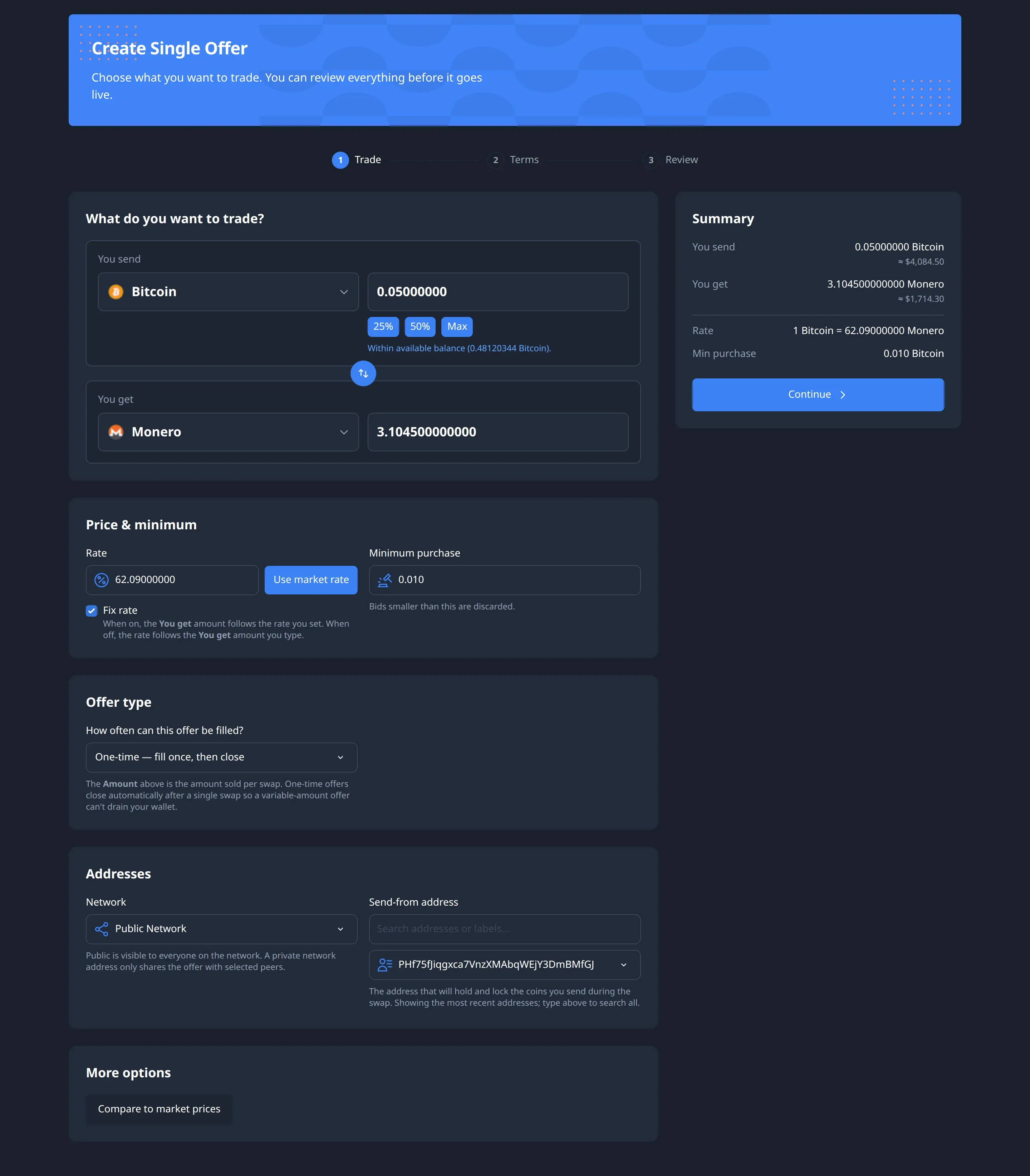
- Under You send, choose the coin you're offering and enter the amount. 25%, 50% and Max fill it from your balance.
- Under You get, choose the coin you want in return.
- Set the price under Price & minimum:
- Rate is how many units of the coin you get for one unit of the coin you send. Use market rate fills in the current market rate from BasicSwap's price sources.
- With Fix rate on, the You get amount follows the rate, and with it off you type the amount you want and the rate follows instead.
- Minimum purchase is the smallest bid you'll take, and BasicSwap discards anything below it.
- Under Offer type, choose how often the offer can be filled, using the three options that Offer types explains further down.
- Under Addresses, leave Network on Public Network to show the offer to everyone, or choose a private address to show it only to people you've shared it with, as described under private offers. Send-from address is the address that holds and locks your coins during the swap, and a new one is the default.
- More options has the less common settings:
- Swap type, which BasicSwap picks for the coin pair. Monero and Wownero pairs use adaptor signatures and most others can use either, and Under the hood explains the difference.
- Allow partial fills, also called amount variable, which accepts bids for part of the amount.
- Rate variable, which accepts bids at a rate other than yours.
- Compare to market prices, which shows how your rate compares with the market.
- Check the Summary on the right and click Continue.
Step 2: the terms

-
Offer valid for (hours) is how long the offer stays on the order book before it expires and stops taking bids, which is 1 hour unless you change it.
-
Contract locked (hours) is how long a swap has to finish once you accept a bid, 24 hours by default. After that, each side can take its locked coins back. In a secret-hash swap the second lock, the participate transaction, runs for half that time.
-
Auto accept strategy decides what happens when a bid arrives:
- None, labelled "accept bids manually", waits for you to accept each bid.
- Accept All accepts a bid automatically if it's at exactly your rate, one swap at a time, so a second bid waits until the first swap has finished.
- Accept Known does the same, but only for traders you've already completed a swap with.
You can change these rules or add your own under Automation Strategies in the menu.
-
Network fees sets how quickly each coin's transactions should confirm, given as a target number of blocks, along with an optional increase on the estimated fee. The defaults suit most trades, so you can usually leave them alone.
-
Click Review offer to move on to the last step.
Step 3: review and publish
The review page shows the trade, the terms, the network and address, and estimated network fees. It also warns you about anything worth a second look, such as an amount above your balance, a minimum purchase above the amount, a contract lock under 2 hours, or auto accept being on. Alongside those checks it compares your rate with the order book's, and when you're happy, Confirm offer publishes the offer. If publishing fails, the form keeps your details, so you can fix the problem and click Retry publish.
The offer then appears on the Order Book for everyone and under Your Offers for you.
Offer types
| Type | What happens after a swap |
|---|---|
| One-time, the default | The amount is what one swap sells, and the offer closes itself once that swap completes, so even with partial fills allowed it can't sell more than that. |
| Fixed total | Each swap sells up to the amount you entered, and the offer closes once the Total to sell has gone. |
| Standing | The offer stays up and keeps filling until it expires, or until your wallet would drop to the Minimum wallet reserve you set, at which point BasicSwap revokes it. |
Accept bids
With an auto accept strategy, a matching bid starts its swap on its own. Otherwise, or for a bid the strategy doesn't cover, open Bids, choose the received bid, check its amount and rate, and click Accept Bid. From then on the swap runs by itself, and Take an offer explains how to follow it.
Change or cancel an offer
Open Your Offers and click Edit on an offer to see its bids and progress. There you can change its auto accept strategy under Edit Offer, or take it off the order book with Revoke Offer, which leaves any swaps that have already started to finish as normal.
Private offers
A private offer only reaches the people you choose:
- The recipient opens SMSG Addresses, creates a New Receiving Address for offers, and sends you its public key.
- You open SMSG Addresses, use Add Sending Address to add that key, then make the offer with the recipient's address selected under Network instead of Public Network.
BasicSwap ignores offers sent to any address other than the public network's or one created for receiving offers.